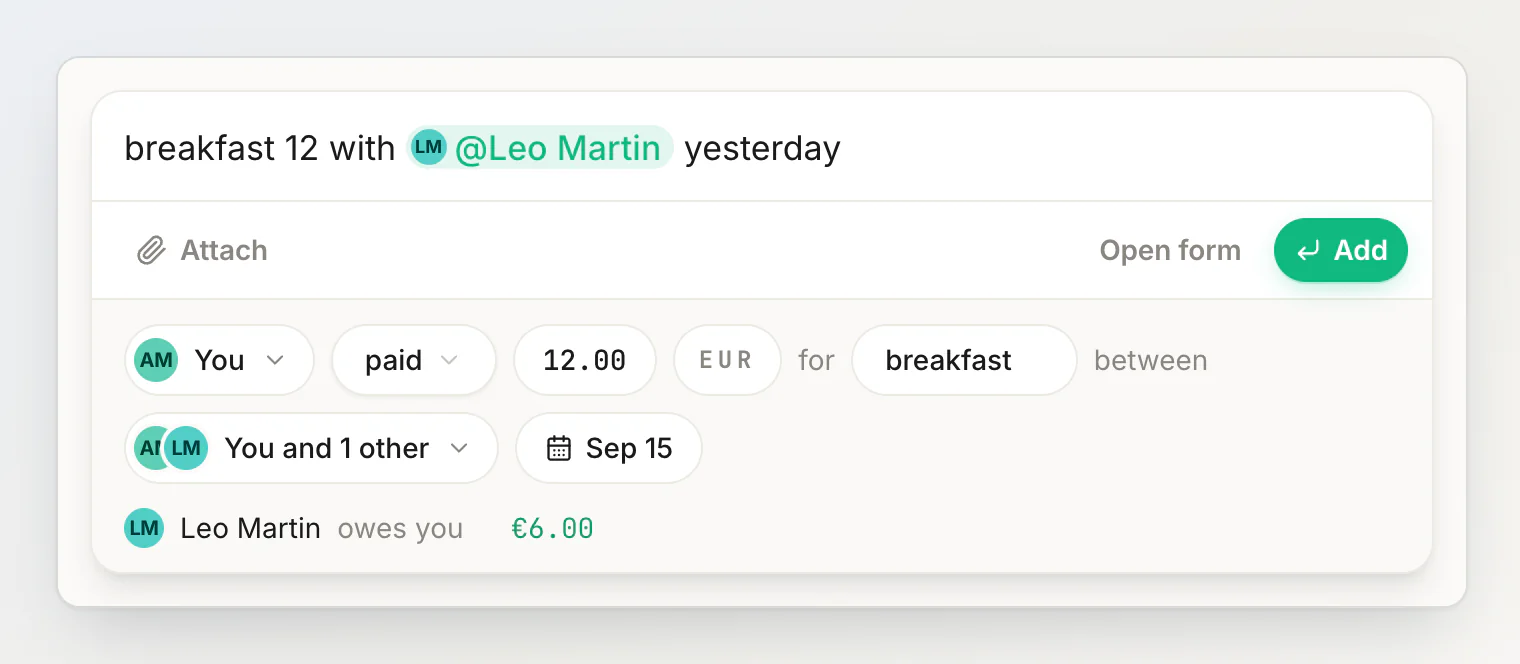
The quickest way to record a transaction is to type what happened, the way you would text it — dinner 84 with Max Keller and Anna Lopes yesterday — and press Read. AI reads the sentence, shows you what it understood, and nothing is saved until you press Add.
Where the field is
On the dashboard, at the top.
On a person's page. That person is already on the transaction.
On a group's page. Everyone in the group is on it, and the transaction is tagged with the group. Once the sentence names someone, it decides who is on it:
taxi 20, Anna paidis split between Anna and you, andtaxi 20, Anna paid, all of uskeeps the whole group.
Anywhere else, Add expense in the header — ⌘K on a Mac, Ctrl K elsewhere — opens the same field as a palette. On a phone, tap the + in the bottom bar.
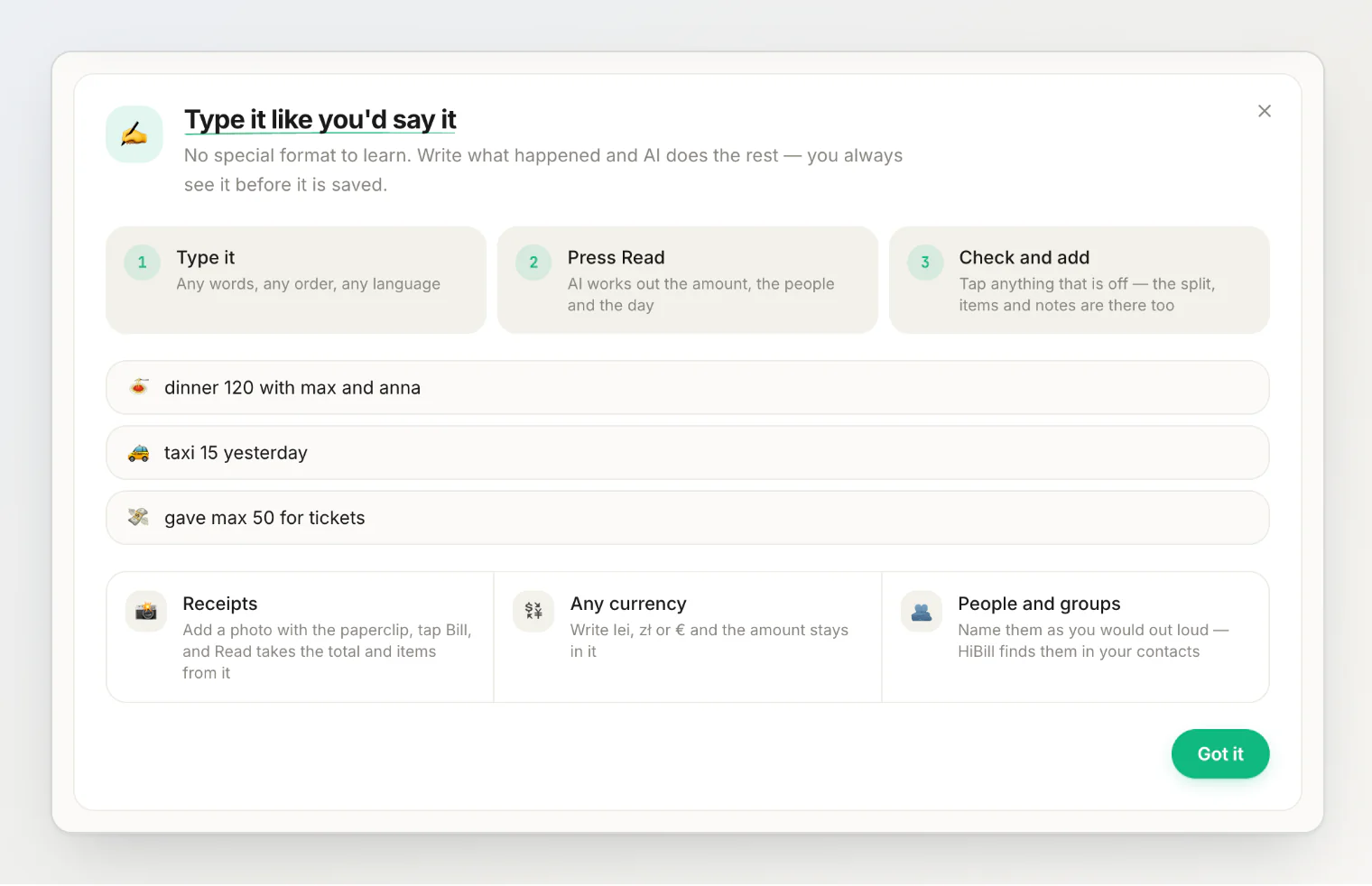
On a new account, a getting-started card beside the field walks you through the same three steps: type it, press Read, check and add.
1. Type it
There is no format to learn. Any words, in any order, in any language: dinner 84 with max and anna yesterday, taxi 15, Max gave me 20 for the taxi. Write what matters to you — the amount, who was there, what it was for, the day — and AI works out the rest.
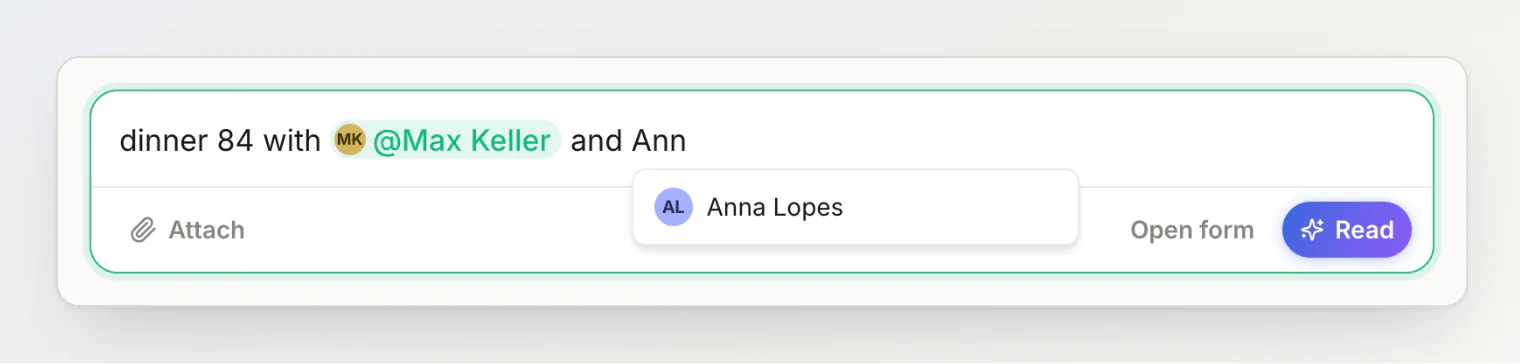
As you type a name, HiBill offers the contacts it fits once you have typed three letters. Pick one with ↑/↓ and Enter, or Tab, and it becomes a pill; keep typing and it stays a word. Pills are optional — AI matches names to your contacts either way. It goes by the contact's name, so spelling matters: anna finds Anna Lopes, ana does not. A pill removes any doubt. Type @ to open the full list of your people and groups.
2. Press Read
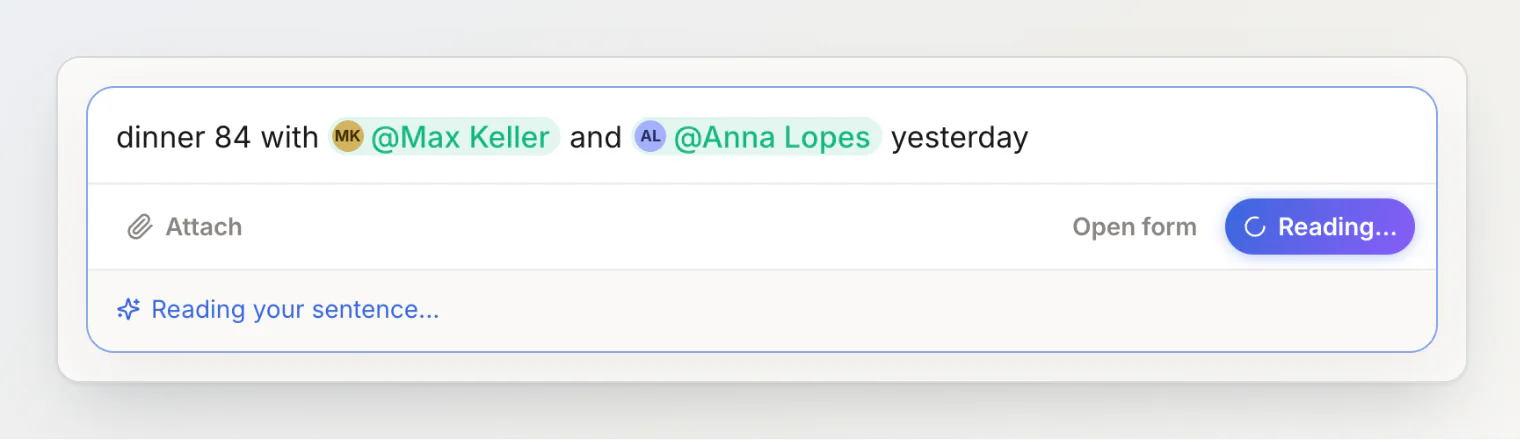
Press Read, or Enter. The field turns AI blue and says Reading your sentence… while AI works out the amount, the currency, who paid and how much, whether it was a shared cost or money handed over, who shares it and how, what it was for, the day, and a group if the sentence names one.
If the read fails, a toast says AI couldn't read that with the reason, the button becomes Try again, and the line under the field offers the form instead. A failed read costs you nothing: it is only counted once an answer arrives.
3. Check the review and add it
What AI understood appears under the field as a row of chips: who paid (You), paid or gave, the amount, the currency (EUR), for and the title, between and the people it's split with (3 people, You and Anna Lopes, Just you), and the day (today, Sep 15). Under the chips, rows show what it does to your balances — Max Keller owes you €28.00, or 3 people owe €24.00 each.
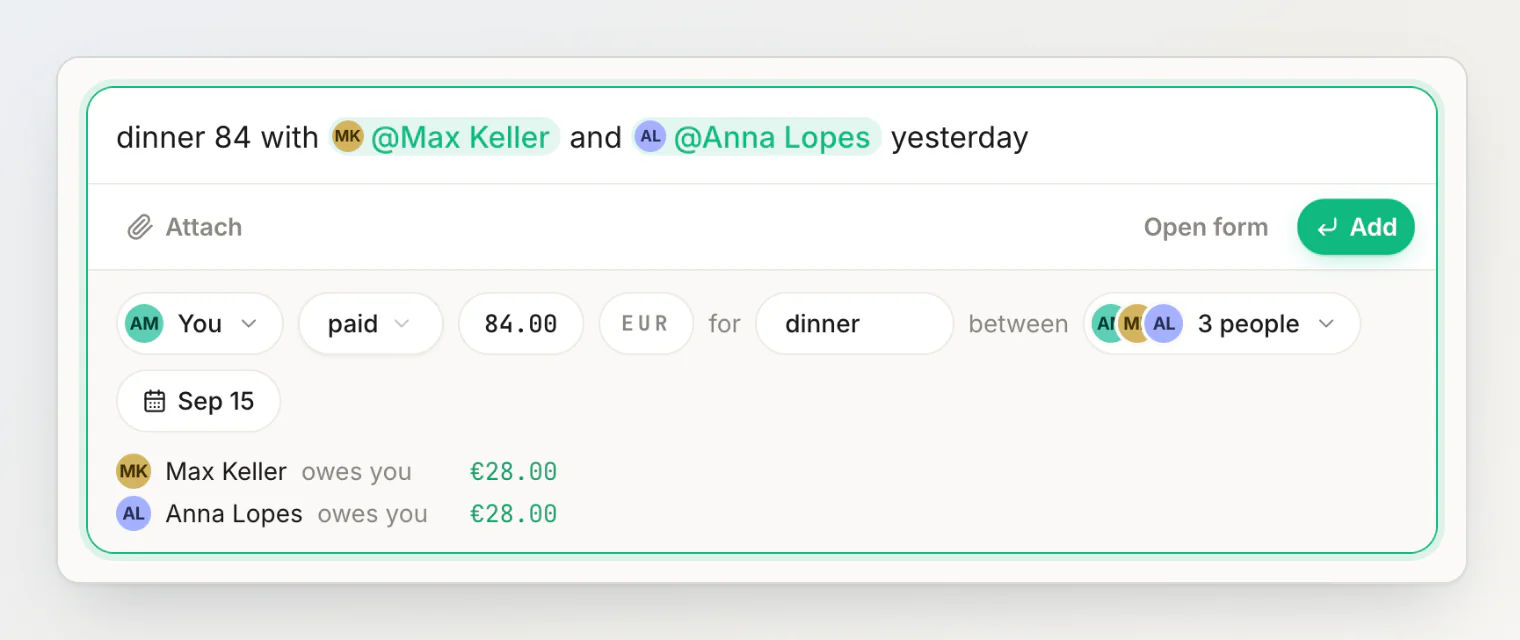
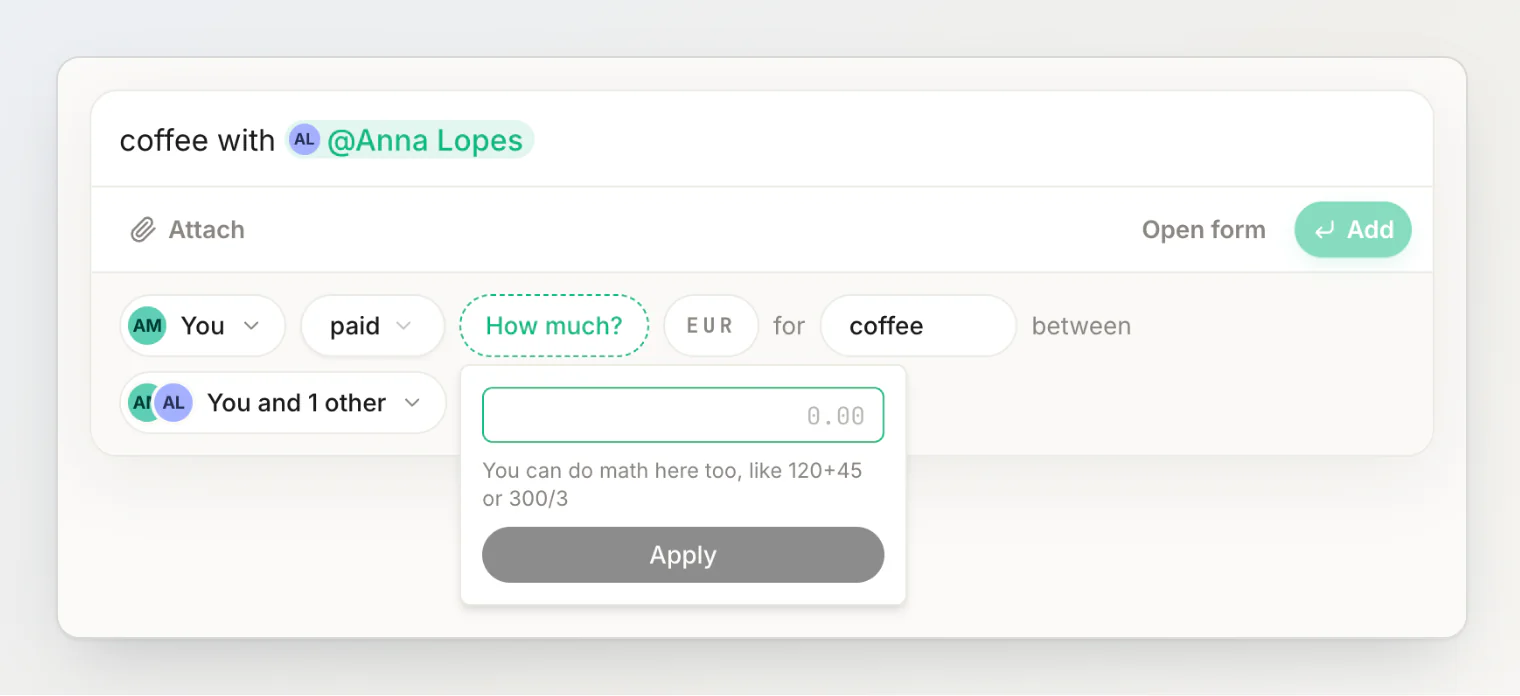
Tap any chip to change it. The amount opens a calculator that does the math (120+45, 300/3), the currency opens a searchable list, and the people chip opens a picker where you can also Invite or add a person. More in fixing what AI read.
Press Add, or Enter again, to save. A Transaction saved toast offers Undo. Esc closes the review.
The review is the full form. If the sentence didn't set the split the way you wanted, tap the split chip. For several payers, tap who paid and choose Split between multiple payers. Add category and Add note sit below the chips. See choosing a split method.
To skip AI, Fill in the form yourself — the sliders button next to Read, there while no review is on screen — opens the form without reading anything.
Uneven splits and several payers
Say how the cost is split, or who paid how much, in the same sentence, and the review arrives set that way:
dinner 90 with Max and Anna, 15 for Max and the rest equally: Max's share is €40, his €15 plus an equal part of the rest; Anna's and yours are €25 each.dinner 90 with Max and Anna, Max owes 15, the rest between Anna and me: Max's share is €15; Anna's and yours are €37.50 each.Max paid 100 for pizza, Anna 30, Sam 20, I cover the rest: Anna €30, Sam €20, you €50, Max nothing.hotel 300 with Anna and Sam, Anna pays double: Anna €150; Sam and you €75 each.groceries 60 with Anna, I pay 60% and Anna 40%: a split by percentage.dinner 90 with Max and Anna, I paid 60 and Max paid the rest: two payers, €60 and €30.On a group's page,
dinner 80, everyone except Max: the whole group but Max.
AI only reports what the sentence gives each person, and HiBill works out the cents. If the sentence's numbers don't add up to the amount, the split says by how much: €10.00 too much, or €10.00 still to share out when nobody takes the rest. Change the amount or the people, and HiBill works the shares out again, until you change the split or the payers yourself.
Two things in one sentence
taxi 15 and dinner 60 is read as the taxi alone, and a note with a sparkle, under the balance rows, says to add the dinner separately. gave Anna and Sam 20 each becomes the transfer to Anna, with a note to add Sam's.
When something is missing
AI never invents a price. When the sentence leaves something out, or names someone it can't match to a contact, the review says so:
No amount. The amount chip reads How much? and its calculator opens. Add stays disabled until the amount is filled in.
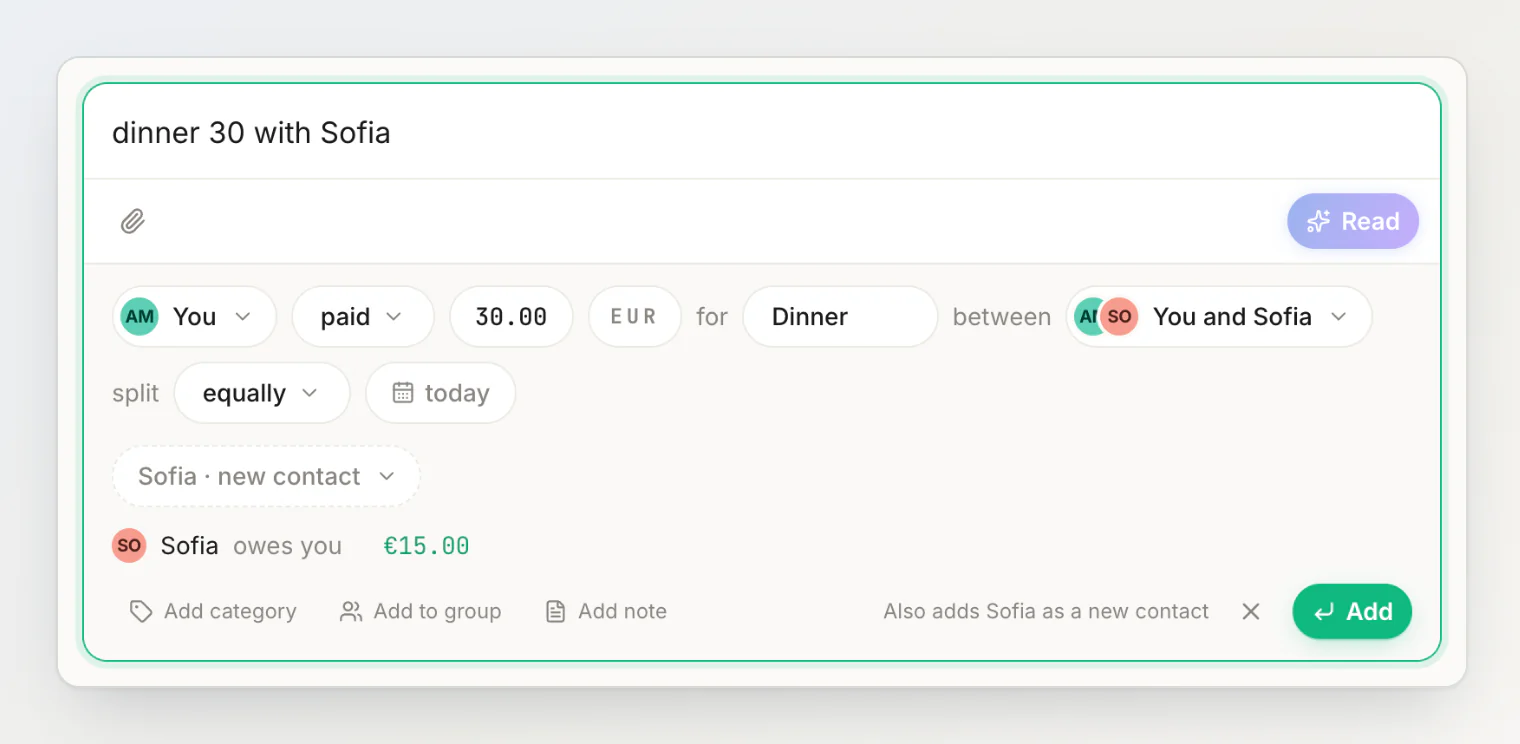
A name that isn't one of your contacts. It shows up in the review like anyone else, with their share, and under the chips as Sofia · new contact. Add saves the transaction and makes Sofia a new contact; the line next to Add says Also adds Sofia as a new contact. Check the spelling first:
anabecomes a new contact even when you have Anna Lopes. If Sofia is already a contact under another name, tap her chip and pick her. When the name could be someone you already have, like Kolya for Nikolai Petrov, or might not be a person, the review asks Who is "Kolya"? and Add waits. If it's a café or a shop rather than someone sharing the cost, tap Not a person.
You changed the sentence after reading it. The review dims and says You changed the sentence — read it again to update this, and the button becomes Read it again.
Money handed over
A sentence about money that changed hands is read as a transfer, not a shared cost: gave 15 to Anna Lopes reads as You gave €15.00 to Anna Lopes, and Max gave me 20 as Max Keller gave €20.00 to You.
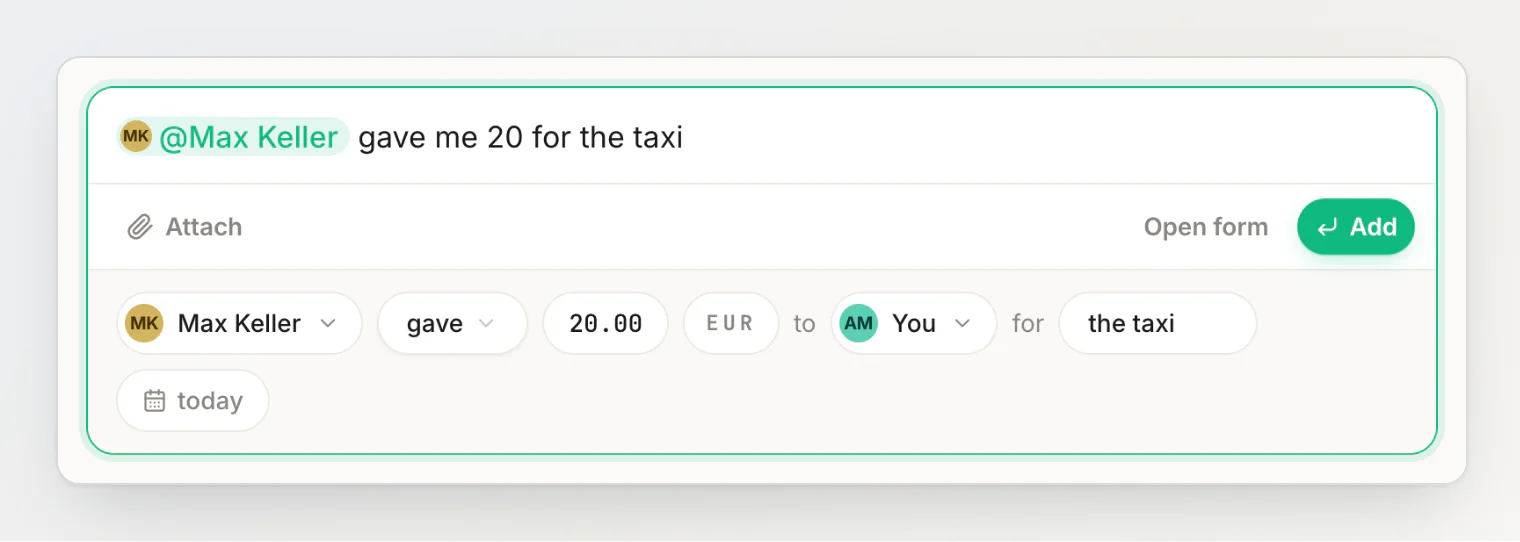
More in expenses and transfers.
Currencies
A number on its own is in your default currency. Write a currency next to the amount — 35 usd, €12.50, 500 lei — to use another. Currency words several countries share ($, lei, kr) follow your own currency when it is one of them; otherwise they're read as USD, MDL and SEK. HiBill never converts between currencies.
Photos and receipts
The paperclip under the field, Attach a photo or file, adds photos and files, up to 5. You can also paste or drop them into the field. Every file is saved with the transaction.
The first photo is the bill, one per transaction: its Bill button is already on, and the field says it will be read as a bill — Read takes the amount, date and items from it. To read another photo instead, tap Bill on it. To keep the first one as a plain photo, tap Bill on it to turn it off. A PDF is saved but isn't read. If you attach the receipt while the review is on screen, tap Bill on it and then Read it again: when the words haven't changed, the sentence isn't read a second time, and the receipt uses a scan.
When the first photo has no amount on it, or the sentence is money handed over, Read leaves it a plain photo and the review comes from your sentence alone. The photo of a transfer is still read, so it uses a scan if it has an amount. A photo you marked yourself is always read as the bill.
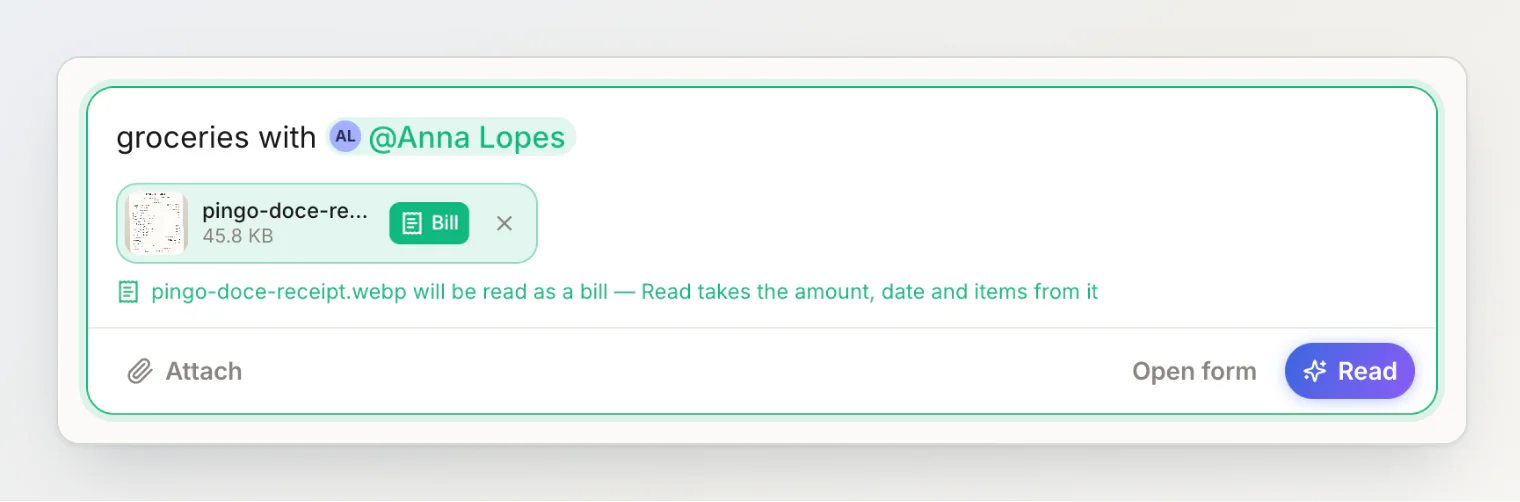
Press Read, and the sentence and the receipt are read together: the receipt gives the total, currency, date and line items, and your sentence gives the people and the title. The review says Amount and date read from the file.
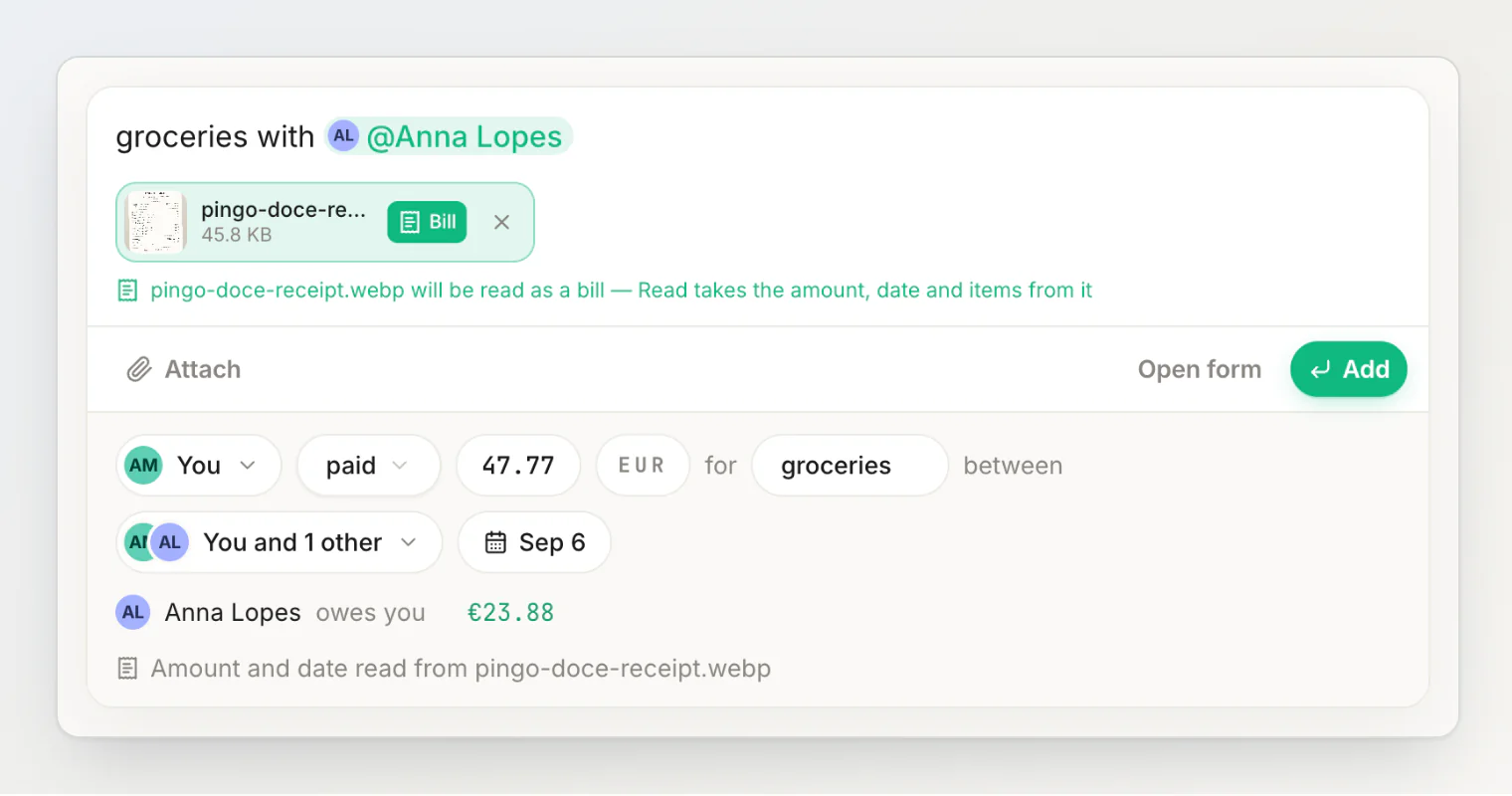
Press Add to save it with the receipt's line items. The split stays equal unless your sentence says who had what or how to split it, or you change it yourself. Each bill read uses one of your monthly receipt scans, and up to 20 photos a month with no amount on them don't count. With no scans left, Read reads only your sentence and the first photo stays a plain photo. A photo you marked yourself, or one read with nothing typed, shows No scans left this month. More in scanning receipts.
Saying who had what
If the sentence also says who had which lines — dinner with Anna Lopes, I had 2 beers and the salad, Anna had the pizza — the review arrives with the split already set to by items and each line on the person who had it. Anything the sentence does not mention stays with whoever paid.
This costs a second AI sentence read, and only happens when:
the scanned bill has line items,
two or more people share the cost, and one of them besides you is already a contact,
you have at least two AI sentence reads left this month,
the sentence doesn't split the cost another way.
Everything is still a review: move any chip, or switch the split back to equal and the attributions clear. More in itemizing a bill line by line.
AI reads and limits
Each Read of a new or changed sentence uses one monthly AI sentence read, and each bill it reads uses one receipt scan:
Free — 50 AI sentence reads and 5 receipt scans a month.
Pro — 1,000 AI sentence reads and 100 receipt scans a month.
The form never uses either. With no AI reads left this month, the field says so where you would type, Read is disabled, and the line underneath offers both ways on: Open the form, which never uses AI, or Get Pro. Whatever you have typed becomes the title when the form opens, and Enter opens it too. If the month's last read went on the sentence you're adding, you can still mark a bill and press Read it again: the sentence isn't read again, so it only uses a receipt scan.
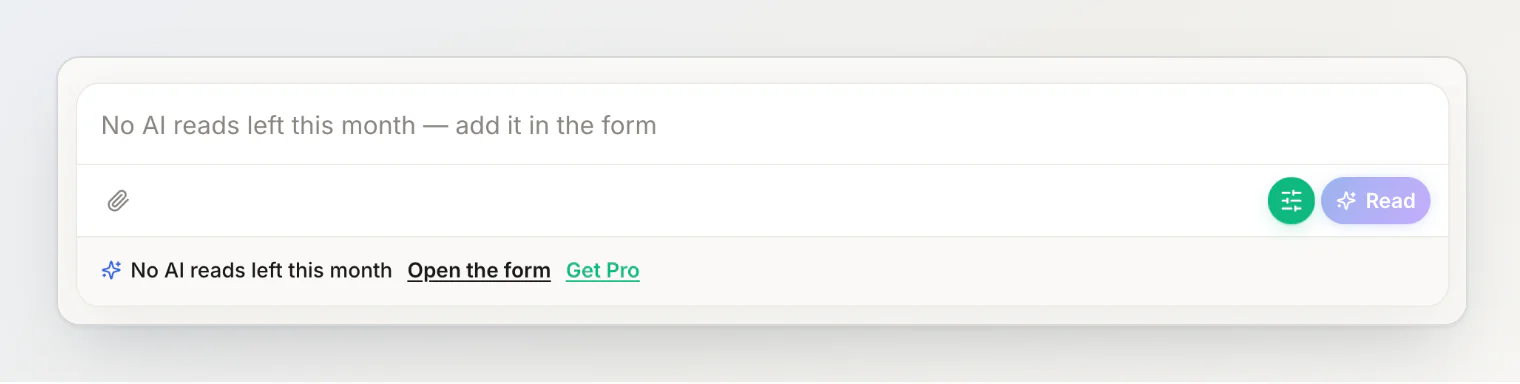
To read a sentence, AI is given the sentence itself, your date, default currency and the app's language, and the names of your contacts (up to the 100 most recent), groups and categories — not your balances or history. A bill also sends the photo. See plans and limits.
Keys
Key | What it does |
|---|---|
⌘K / Ctrl K | Jump to the field, or open it as a palette |
↵ | Read the sentence, then add it |
↑ ↓ then ↵, or Tab | Pick a suggested name |
@ | Open the list of people and groups |
Esc | Close the list, then the review |
Continue reading
Fixing what AI read from a sentence — change any chip in the review before you add it.
Choosing a split method — when an equal split is not right: by amount, by percentage or by items.
How to Split a Bill in Seconds: 20 Sentences HiBill Understands — twenty example sentences and what the review shows for each.