Click a transaction anywhere in HiBill and it opens in a panel beside the list, rather than on a screen of its own. The list stays exactly where it was, with the row you opened outlined so you don't lose your place.
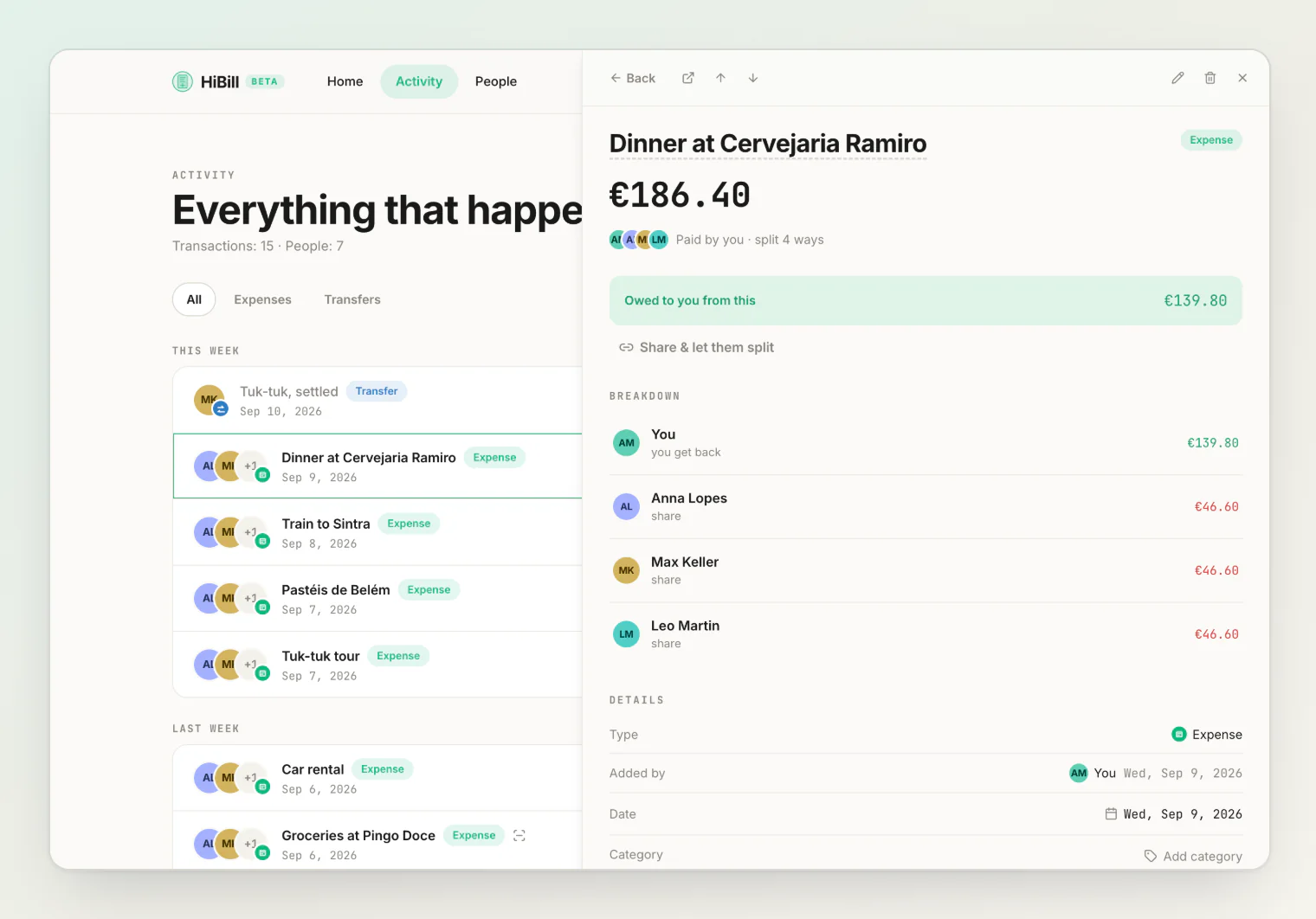
People open the same way.
What opens in the panel
Transactions, from the dashboard, the activity feed, and a person's ledger.
People, from the dashboard and the People list — and from any name inside the panel itself: a line in the split, a comment, an entry in the activity log.
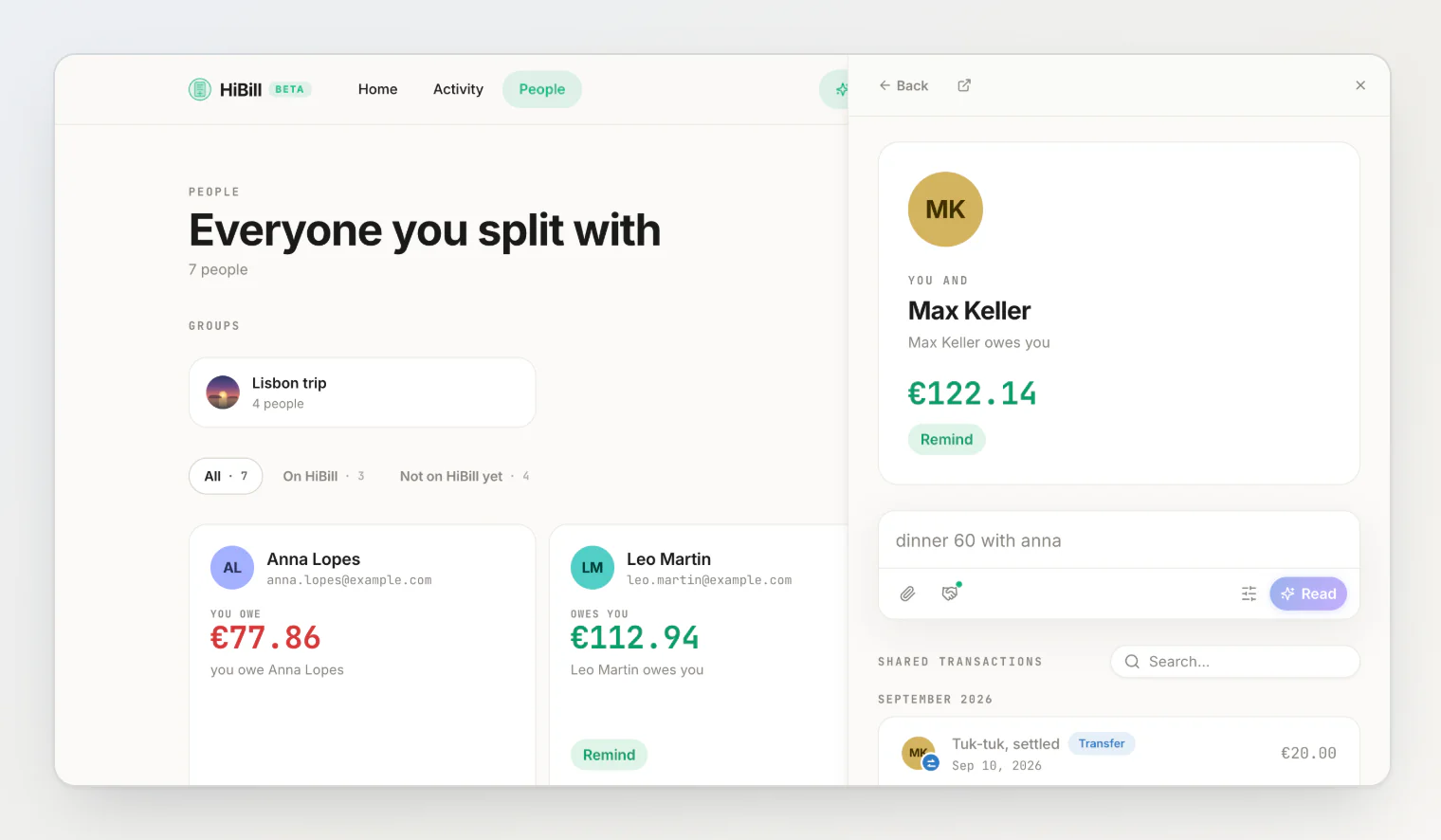
Clicking a name inside the panel swaps the panel over to that person instead of throwing you out to a full page. From their shared transactions you can open a transaction straight back into the panel, so you can follow a bill to a person to another bill without ever leaving the list you started from.
The panel is part of the address
Whatever is open is written into the page URL. That gives you three things:
Refresh and it's still open. Same transaction, same person, same place in the list.
The link is shareable. Send the address to someone else on the transaction and they land with it open. Access rules don't change — someone who isn't on it still sees nothing, so to send a bill outside HiBill, share the transaction publicly instead.
Back closes it. The browser's Back button steps back through what you had open, one at a time, before it leaves the page.
Back, in the panel header
The header starts with a Back button, and it does exactly what browser Back does. After following a chain — a bill, then someone on it, then another of their bills — it walks back along that chain. When there is nothing left to step back to, it leaves the page the way the browser button would.
Stepping through a list
Open a transaction and the header gets previous and next arrows. They move through the list you opened from, in the order it is displayed: from the activity feed you step through the feed, from a person's ledger you step through that person's transactions.
The ↑ and ↓ keys do the same while the panel has focus, which turns reviewing a month of expenses into holding one key. Typing in a comment box suspends them, so the arrows still move the cursor.
Resizing the panel
On a desktop, the seam down the left edge of the panel is a handle. Drag it and the panel takes any width between 480 and 960 pixels. That width is remembered in your browser and used next time.
Clicking the seam rather than dragging it closes the panel.
Closing it
Any of these:
Esc, while the panel has focus.
The X in the header, or a click on the seam.
Back, in the header or in the browser.
Escape pressed while you are typing in a field inside the panel gets you out of the field first and closes the panel on the second press. Escape in a filter or search box on the page behind the panel is left alone entirely.
Clicking the page behind the panel does not close it. The panel is not a modal, so the list stays live underneath — you can scroll it, filter it, and open something else with the panel still up.
Going to the full page
Open full page in the header leaves the panel for the full-screen view of the same transaction or person. So does ⌘-clicking a row (Ctrl-clicking on Windows) or clicking it with the middle button, which opens that page in a new tab.
Both views show the same thing. The panel is the quick look; the page is the one to bookmark.
On a phone
The panel covers the screen and there is no resizing. Everything else is the same: Back, Close and the stepping arrows behave as they do on a desktop, and the address still carries whatever is open — so a link you send from your phone opens the same way on a laptop.
Continue reading
Reading and editing a transaction's details — what every row in the panel tells you, and which ones you can change in place.
Keyboard shortcuts — add a transaction and step through a list without leaving the keyboard.
Every Panel Should Have a URL: Opening a Shared Expense Without Losing Your Place — why the panel lives in the address and isn't a modal.