Open a transaction — in the side panel or on its own page — and you get the same thing: the headline, who is on it, how it splits, and a Details section underneath.
The headline
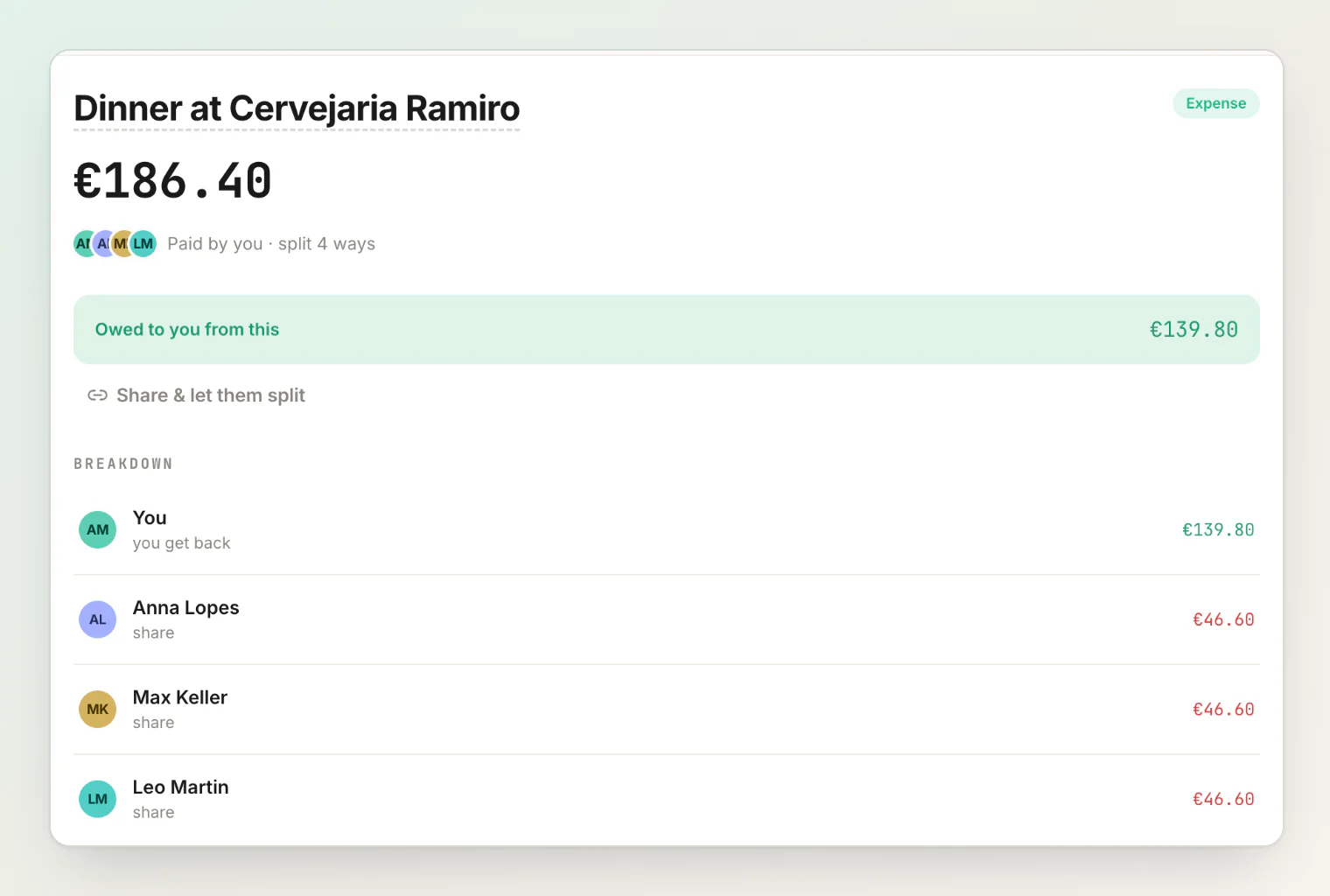
The title, the amount, and a row of faces.
Click the faces to see People involved: everyone on the transaction, with the payer and the people sharing it. Click any of them to open that person.
The line beside them summarises the split — "Paid by you · split 2 ways", or "shared via link" while a bill is an open split.
The breakdown
One line per person, in plain language: who paid the bill, who gets money back, who owes a share.
Two small icons can appear next to a name:
An hourglass — that person has not yet approved their share.
A cross — they declined it, and their amount is struck through and left out of the balance.
Hover or tap either icon to see what it means. Your own share is not marked here: when you have something to approve, the panel says so directly, above the breakdown.
The Details section
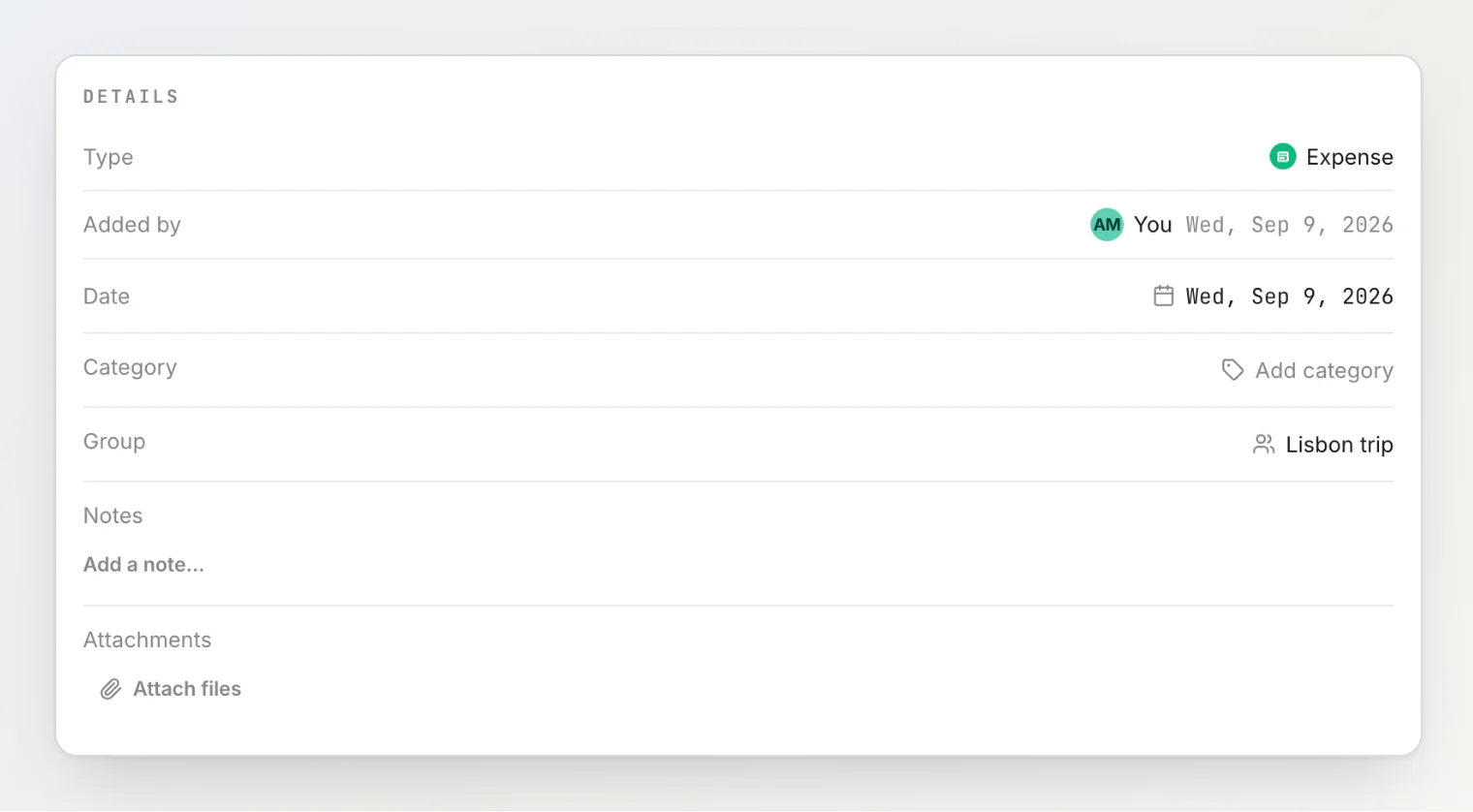
Row | What it is |
|---|---|
Type | Expense, Transfer, or Simplification |
Added by | Who created the record, and when |
Date | The date of the expense itself, not the date it was entered |
Source | Shown when the transaction came from a scanned receipt, or — only to you, if you added it — as the sentence you typed |
Category | Optional label, also shown above the title |
Group | The optional group this transaction is filed under |
Notes | Anything the number doesn't explain by itself |
Attachments | Receipts and photos |
Added by and Date answer two different questions, which is why they sit next to each other. A dinner from Saturday that you recorded on Monday has a Date of Saturday and an Added by of Monday.
Editing in place
If you are on the transaction, most of these rows are directly editable. There is no form and no Save button for the section — each change saves on its own.
Title — click it, type, press Enter. Escape cancels.
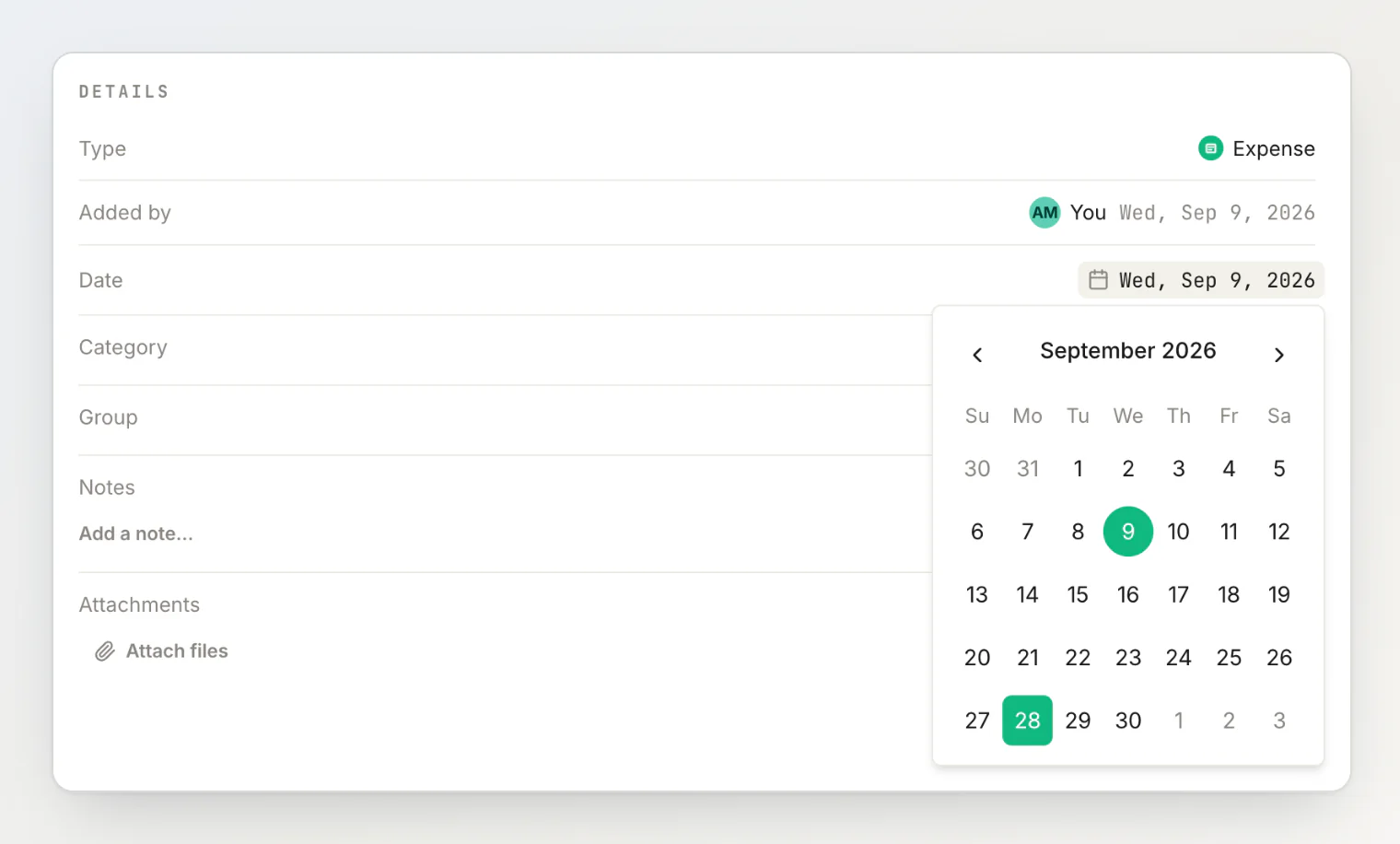
Date — click it and pick a day from the calendar.
Category — click it, then pick one or type a new name to create it.
Group — click it and pick one, or No group to clear it. The row only appears once you have a group, one you made or joined.
Notes — click Add a note, or Edit on an existing one, then Save.
Attachments — Attach files adds one; hovering a file gives you Remove.
Removing a file asks for confirmation first. You can remove a file you attached yourself, or any file if you created the transaction.
Simplification entries are generated by HiBill rather than written by you, so their title, category and group are not editable. See how debt simplification works.
Changing the group moves nothing: it files the transaction under that group so it shows on the group's page, and leaves every balance where it was.
What is not editable here
The amount, the currency, who paid, who shares it, and the split method all move balances, and they depend on each other. Those are edited together through the pencil icon in the header, which opens the full form. See editing and deleting transactions.
The activity log
Below the details, every transaction keeps its own history: who created it, who approved or declined a share, who claimed one, and what each edit changed.
Changes to the amount, the date, the description and the people on a transaction are all recorded there by name and value, so a number never moves without a visible reason.
Comments
At the bottom, a thread anyone on the transaction can post in. It is the right place to question a number rather than editing someone else's entry — see attachments and comments.
Continue reading
Editing and deleting transactions — change the amount, payers or split, or remove a transaction entirely.
Attachments and comments — keep the receipt on the bill and question a number right next to it.
Expenses and transfers: the two kinds of transaction — what the Type row means and when to use each kind.