HiBill has a small number of screens. Here is what each one is for.
Dashboard
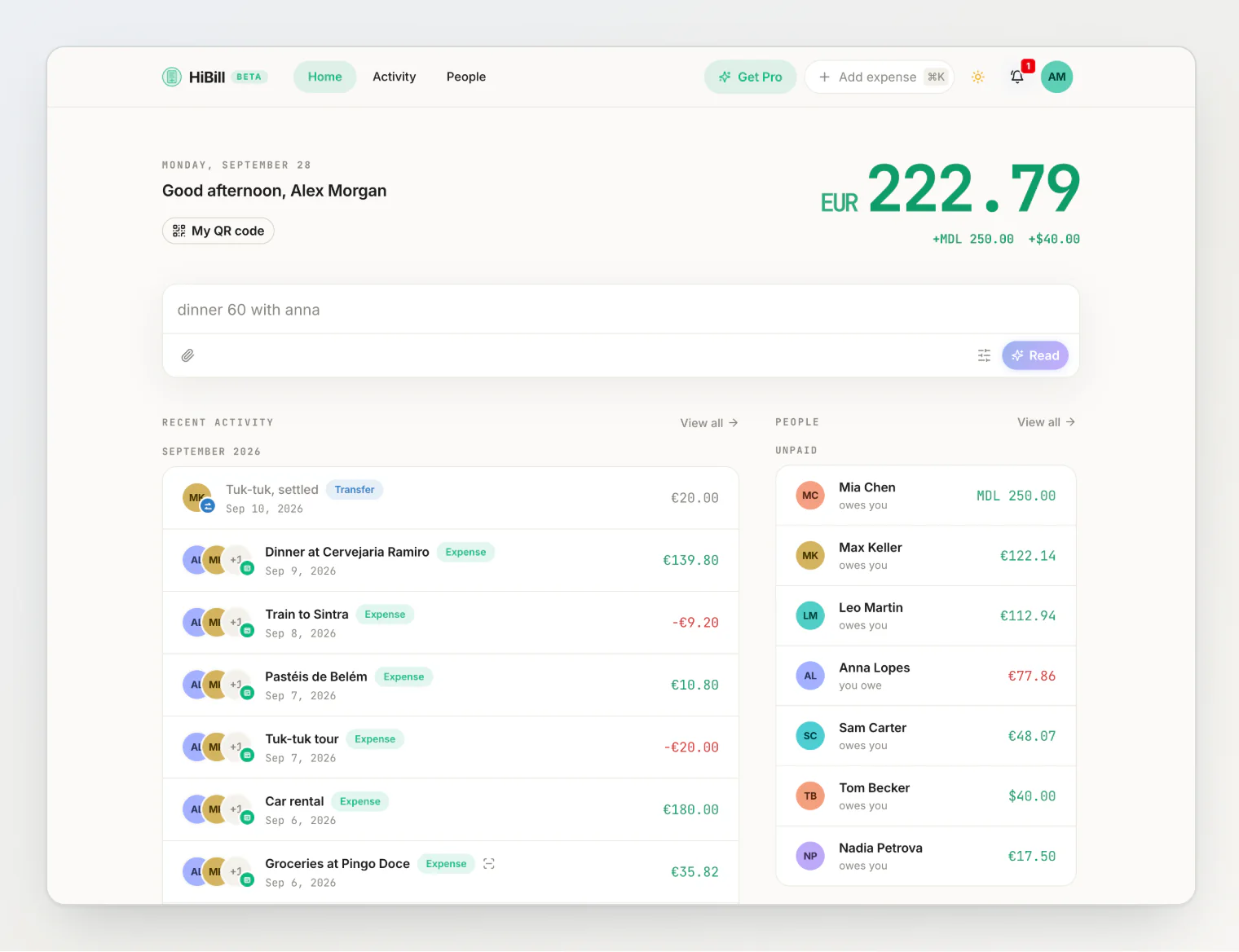
Your home screen. It shows where you stand overall — who owes you, who you owe, and recent activity.
This is the "how am I doing" view. For anything specific, go to the person.
People
The list of everyone you split with, real or placeholder, with your current balance next to each.
Tap someone to open the two-person ledger — the most important view in HiBill. It shows every transaction you and that person both touched, in order, and what it comes to right now. Nearly everything you want to know is answered here.
It opens in a side panel over the list, so you keep your place. Use Open full page in the panel header, or ⌘-click the person, for the full screen.
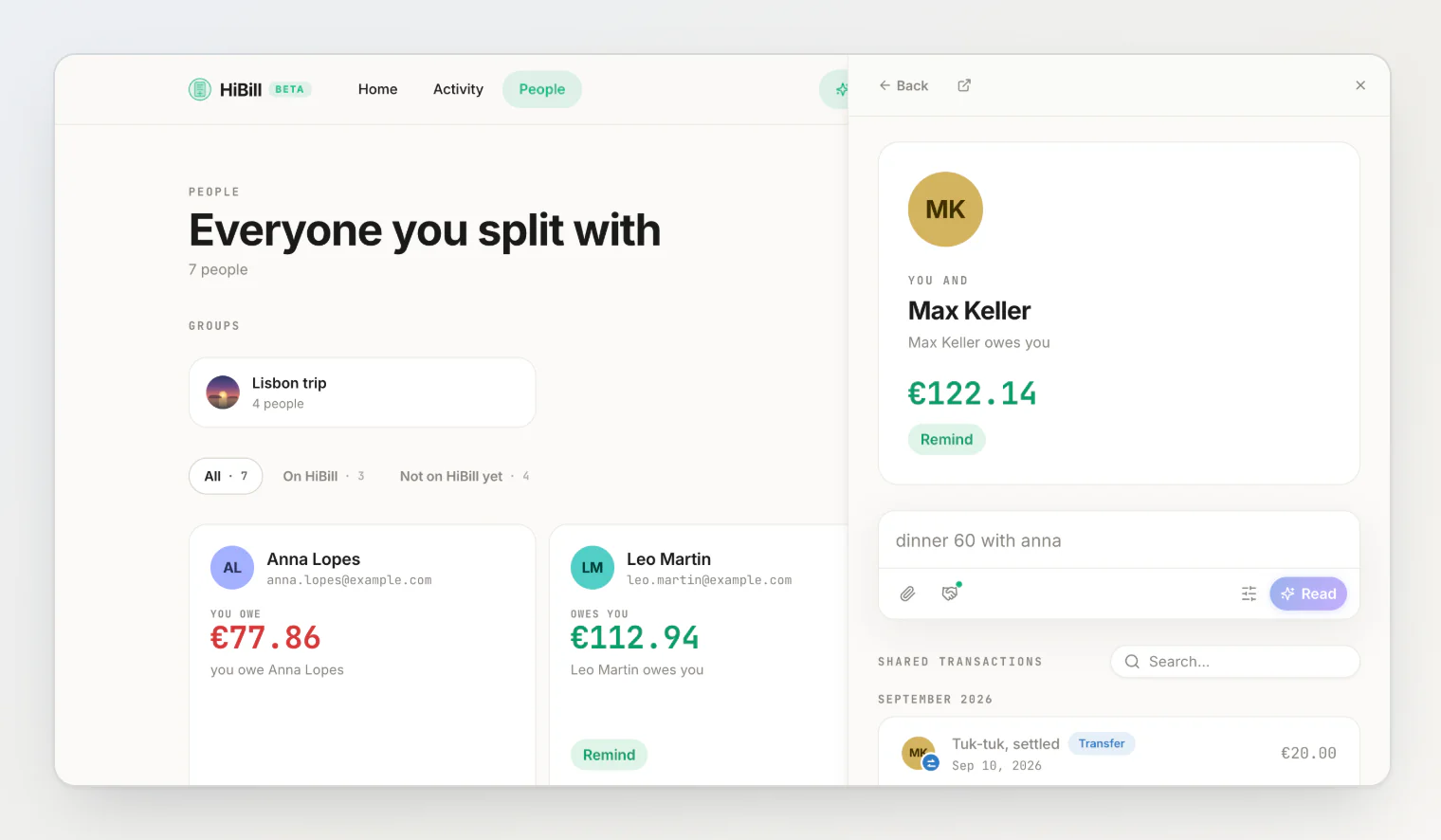
From a person you can also settle up with them — the handshake button in the sentence field, Settle up with … — or send a reminder.
Groups
Your named groups of people — "Lisbon weekend", "Flat 4B". They are listed in the Groups section at the top of People, and Start a group there makes a new one. The dashboard lists them too. Open one to show its QR code, manage members, add everyone to a transaction at once from its sentence field, or read the transactions tagged with it.
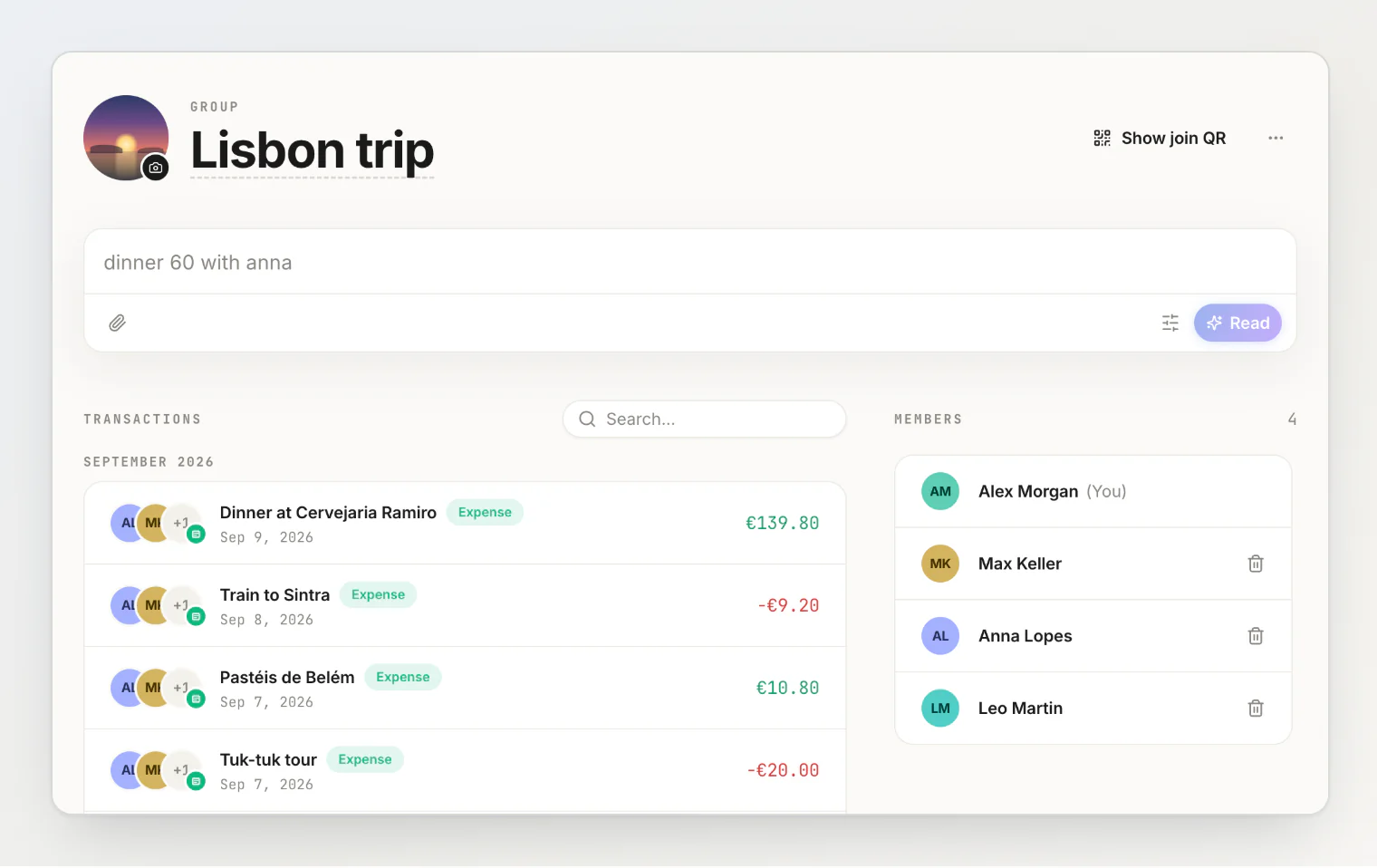
Groups hold no money and have no balance or total of their own. See creating and using groups.
Adding a transaction
Type it. The dashboard, a person's page and a group's page each have a sentence field at the top: type what happened (45 sushi with max), press Read, check the review, then press Add. Everywhere else, Add expense in the header (⌘K, or Ctrl K) opens the same field as a palette; on a phone, it is the + in the bottom bar.
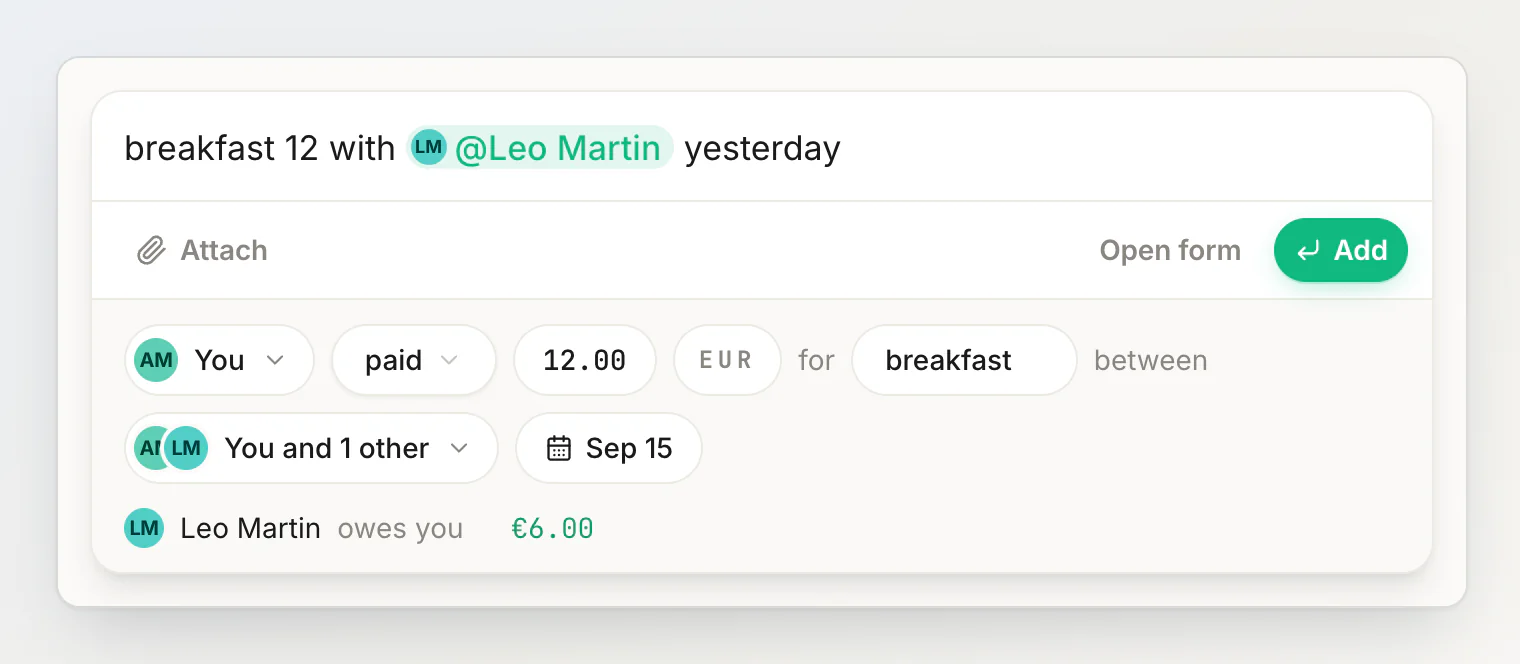
The same field records transfers (gave 15 to anna) and reads a receipt you attach and mark as a bill, and Fill in the form yourself, the sliders button next to Read, opens the full form when a sentence isn't enough. See adding a transaction by typing a sentence.
Transaction detail
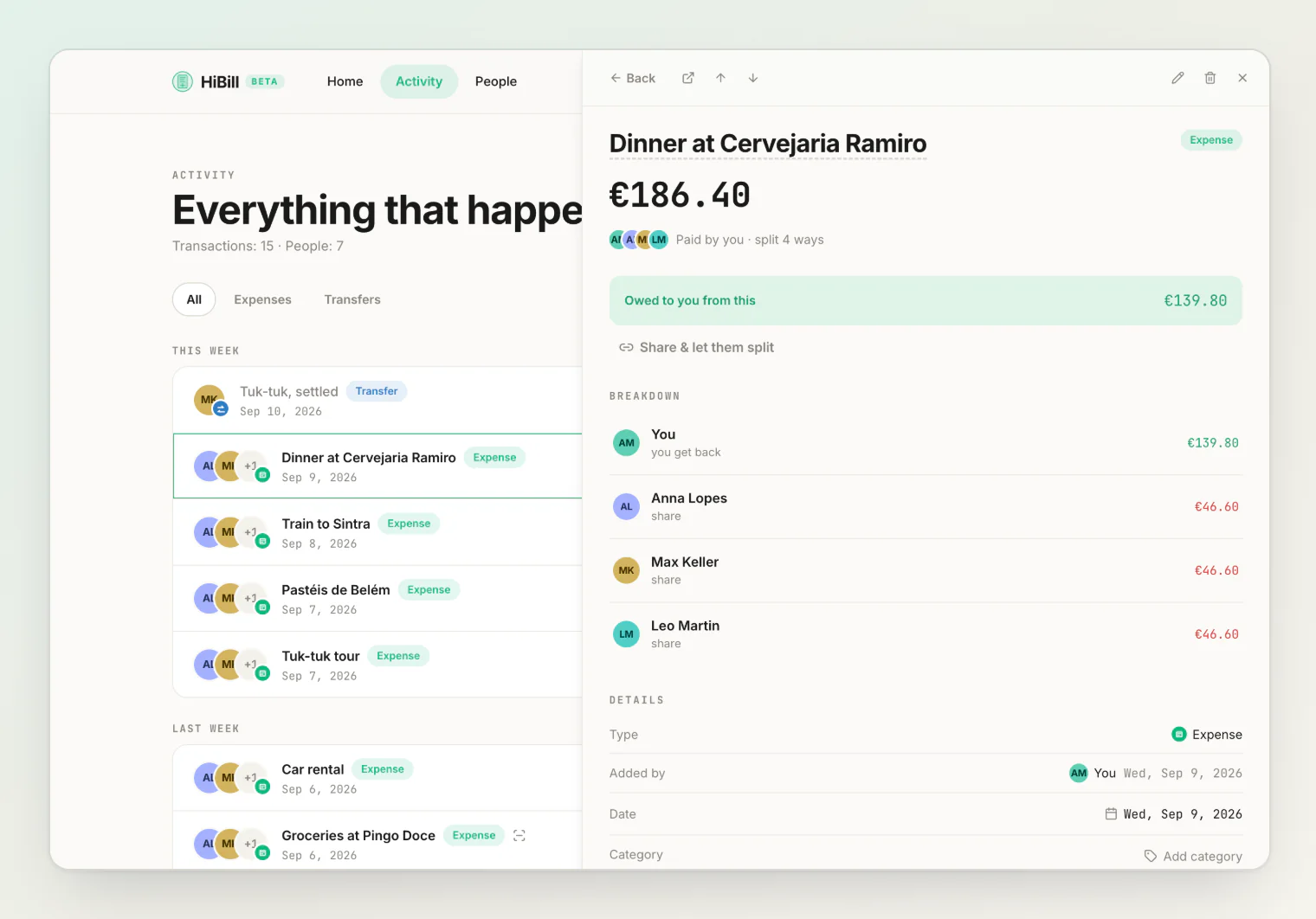
Open any transaction to see the full breakdown — who paid, who owes what, the split method — plus comments and attachments, and the option to share it publicly.
This opens in the same side panel, with arrows in the header to step through the list you came from. Whatever is open is part of the address, so a refresh keeps it and the link can be sent to anyone else on the transaction.
Activity
Every transaction you added or are on, newest first by the day it happened. Deleted ones stay in the list, marked as deleted. Filter it to expenses or transfers, or search by title.
This is where to look when a balance changed and you want to know why.
Settings
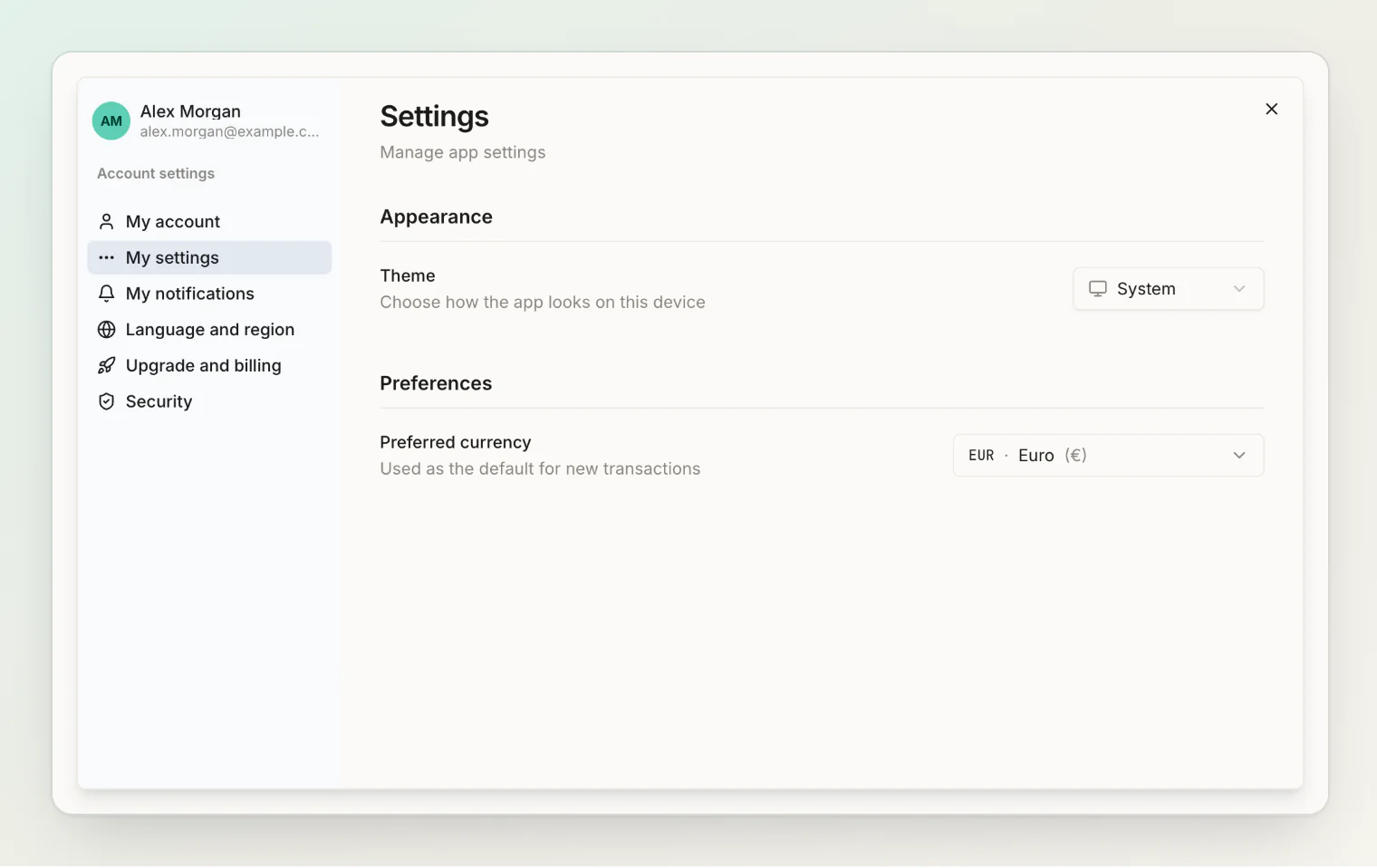
Your profile, sign-in methods and sessions, notifications, language, subscription, and account deletion. How much storage your receipt photos and attachments use is shown under Upgrade and billing — useful when you are near a plan limit.
Notifications
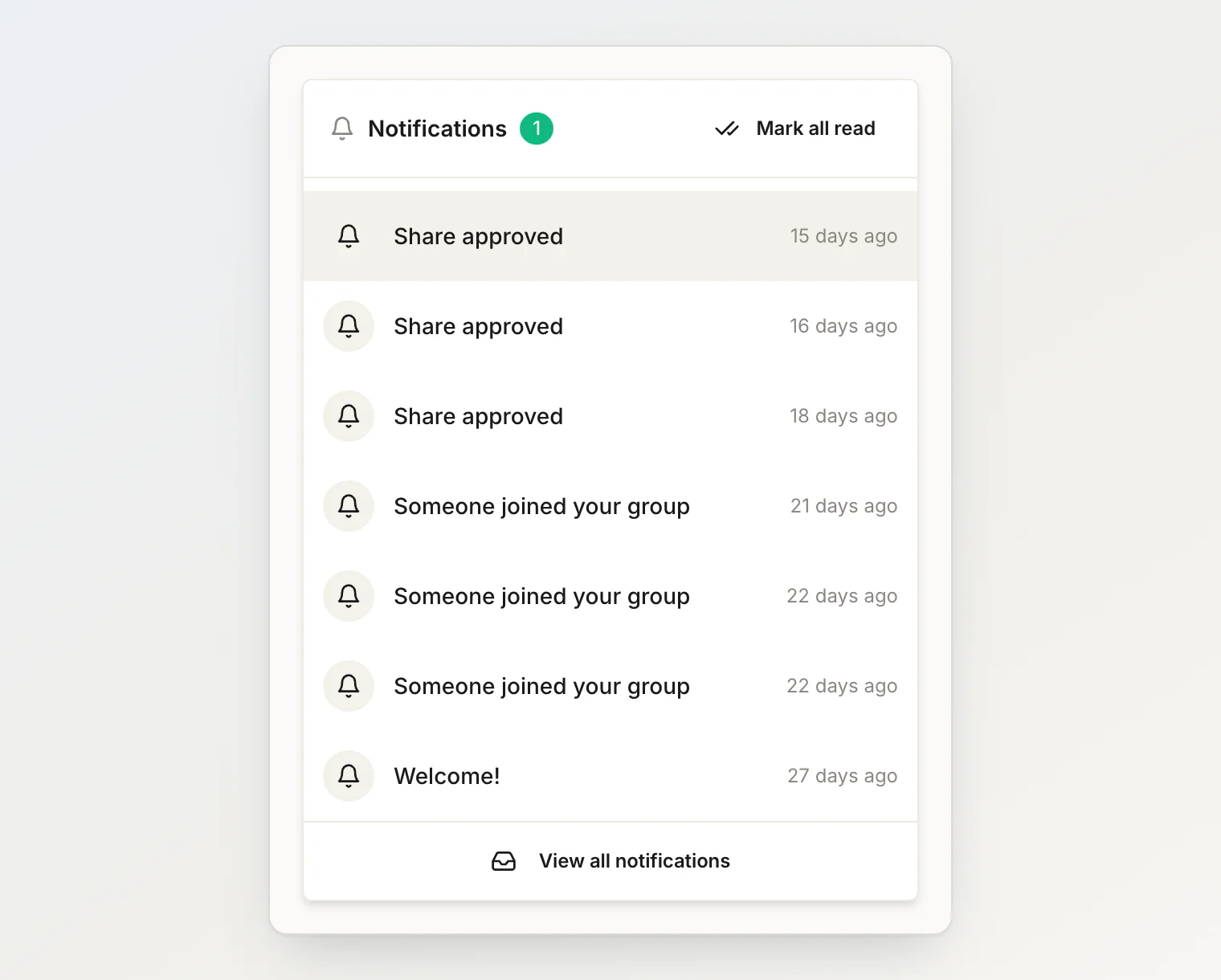
The bell shows what needs your attention — a merge request, a payment reminder, a comment, someone joining a group. See notifications.
Continue reading
Recording your first shared bill, step by step — a worked example: a €96 dinner for four, from the sentence to a settled balance.
Understanding balances — what the number next to each person means and when it changes.
Adding a transaction by typing a sentence — everything the sentence field understands.